Pick, pack and ship orders every day
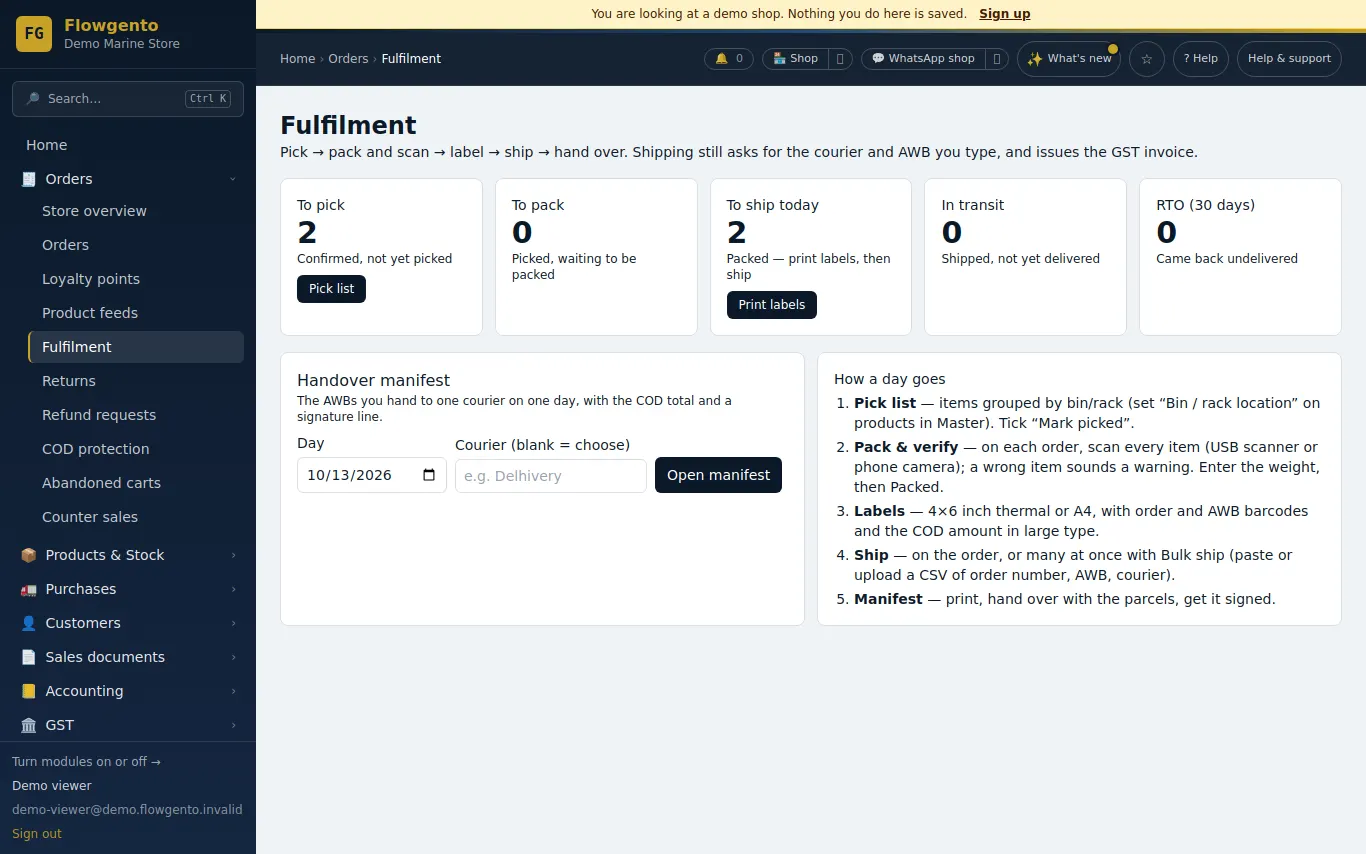
One screen shows what to pick, pack and ship today, what is in transit, and what came back. Each step is a button, and nothing ships without the courier and AWB.
How it works
- Print the pick list and collect the items.
- Open each order, scan every item, enter the weight, mark packed.
- Print the labels and mark shipped with the courier and AWB (one by one or in bulk).
- Print the manifest and hand the parcels to the courier.
The day
- Pick list: items grouped by bin or rack, with the order numbers.
- Pack and verify: scan every item; a wrong item sounds a warning. Enter the weight and mark packed.
- Labels: 4×6 inch thermal or A4, with order and AWB barcodes and the COD amount in large type.
Shipping and after
- Ship one order, or many at once from a pasted list or CSV of order number, AWB and courier.
- A handover manifest per courier per day, with the COD total and a signature line.
- RTO: record a parcel that came back undelivered; stock goes back.
See it in the demo shop
A read-only seller panel with invented data, reset every night.
Questions sellers ask
- Does Flowgento book couriers or get AWB numbers?
- No. You book with your courier and enter the AWB; Flowgento builds the tracking link for known couriers.
- Can I use a phone to scan?
- Yes — the packing screen can use the phone camera, or a USB scanner.
- What if a parcel comes back?
- Mark it RTO; the stock goes back and the order shows why.
- Is the GST invoice made at shipping?
- Yes — marking an order shipped raises its invoice.
How it works, step by step
- Orders and manual courier
Confirm, pack, ship with courier and AWB, deliver; cancel before shipping; bulk ship from a pasted list.
- Packing slips
Print one slip per parcel for the ticked orders.